

Quick answer: Back your photos up to Google Photos or iCloud first, and check the backup has finished. Then use the built in free up space or optimise storage setting to remove full size copies from the phone. Add offloaded apps and cleared downloads, and you’ll get gigabytes back without losing a single picture.
The “Storage Almost Full” warning always seems to land at the worst moment. You’re boarding a plane. You’re filming a school play. You’re trying to install an update. And the instinctive fix, scrolling through your camera roll deleting memories, is also the worst fix. Your photos are the one thing on your phone that can’t be downloaded again.
Here’s the good news. The photos themselves aren’t really the problem. The full size copies sitting on the device are. This guide walks through the safe order for Android and iPhone users in the US and UK: back up, verify, then let the phone remove local copies while everything stays safe in the cloud. More phone know how lives in our Software section.
Step 1: See what’s actually using your storage
On iPhone
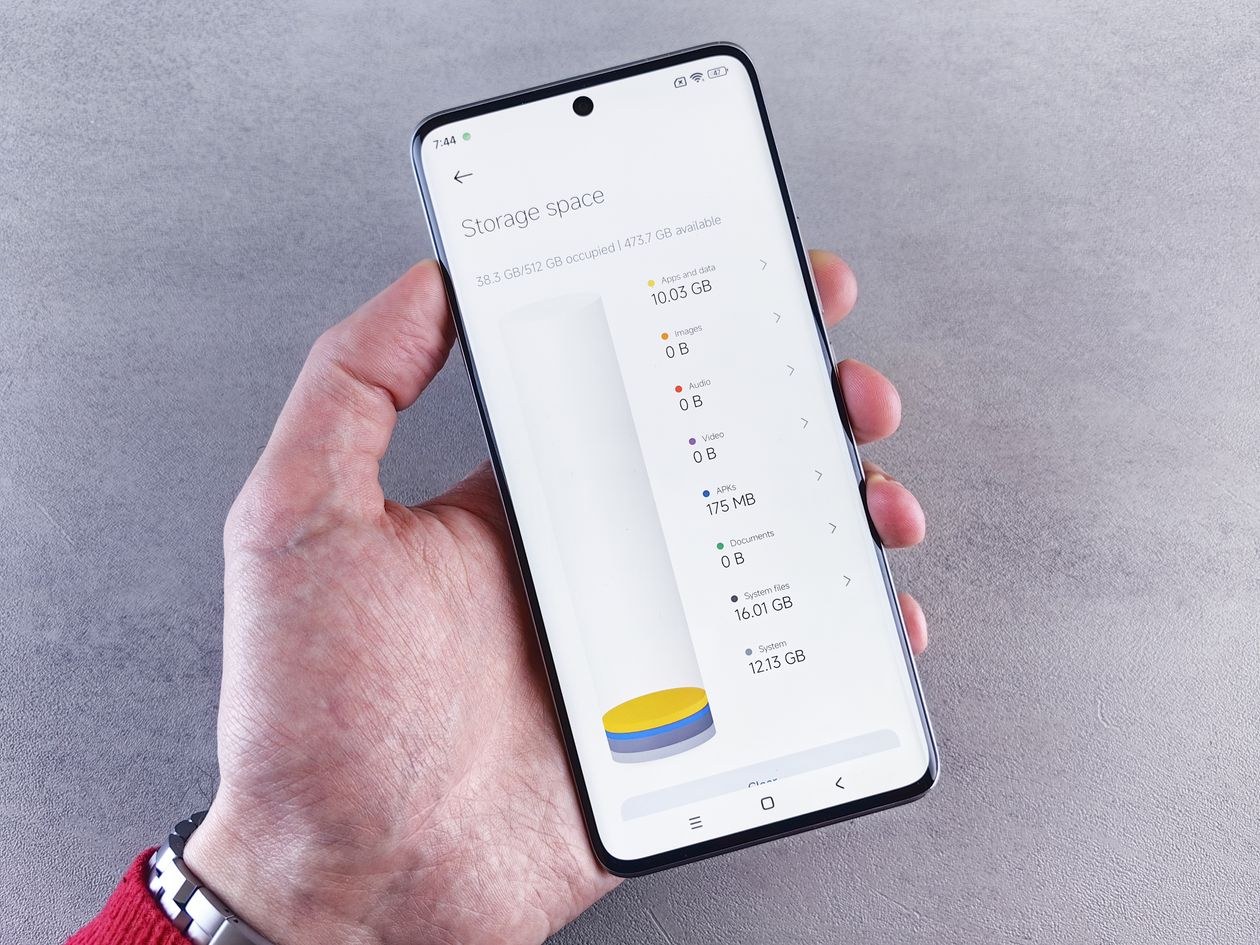
Go to Settings, then General, then iPhone Storage. You’ll see a bar chart by category, a list of apps ranked by size, and personalised recommendations at the top. Apple’s guide to checking storage on iPhone and iPad explains each category and the recommendations your device may offer, like reviewing large message attachments or offloading unused apps.
On Android
Go to Settings, then Storage, and tap a category to see what’s using space. Google’s own guide to freeing up storage on Android covers how to find your usage and the automatic options, including Smart Storage, which can remove backed up photos and videos when the device is nearly full.
The usual culprits, in order
- Photos and videos stored on the device, especially 4K video.
- Messaging apps, with years of WhatsApp, iMessage or Telegram photos, videos and voice notes saved inside the app.
- Streaming downloads, like Netflix, Spotify, YouTube and podcast downloads you finished long ago.
- Unused apps and games. One large game can take 5 to 15 GB.
- The Downloads folder and duplicate files: PDFs, installers and the same photo saved three times.
Step 2: Back up your photos properly (don’t skip this)
Everything else in this guide depends on your photos existing somewhere other than the phone. Pick the service that matches your phone, and check the price in your currency. Both Google One and iCloud+ start with small paid tiers of around $1.99 or £1.99 a month for 100 to 200 GB class plans, after free allowances (15 GB with a Google account, 5 GB with iCloud) that most photo libraries outgrow fast.
Android: Google Photos backup
Open Google Photos, tap your profile picture, open Photos settings, then Backup, and turn it on. Connect to Wi-Fi and wait until the app says the backup is complete. Then open a few recent photos on a computer at photos.google.com, just to prove to yourself they’re really there.
iPhone: iCloud Photos
Go to Settings, tap your name, then iCloud, then Photos, and turn on Sync this iPhone. Next, enable Optimise iPhone Storage. Full resolution originals live in iCloud, and the phone keeps small space saving versions that download the full file when you open them.
The verification rule
Never let any tool remove local copies until you’ve seen your photos in the cloud account from a second device or a browser. Backups fail quietly when a storage plan lapses or Wi-Fi drops. A two minute check removes all the risk from the next step.
Step 3: Remove the copies on the phone, not the photos
Android: Free up space in Google Photos
In Google Photos, tap your profile picture and choose “Free up space” (the wording varies a little by version). It offers to delete device copies of photos and videos that are already backed up. They leave the phone’s local storage but stay in your Google Photos library, ready to view or download at any time.
iPhone: Let optimisation do it for you
With Optimise iPhone Storage on, iOS shrinks local copies on its own as space gets tight. If you’re desperate today, the biggest manual wins are elsewhere in this guide, offloading apps and clearing downloads, while optimisation works in the background.
Turn on the safety net for next time
On Android, enable Smart Storage in Settings, then Storage, so backed up media is removed automatically when space runs low. On iPhone, leave iCloud Photos optimisation on for good. Either way, the storage full emergency shouldn’t repeat.
What we have learned from doing this for family
We’ve run this exact clean up on parents’ phones more times than we can count, and it taught us one thing: the fear is always worse than the job. People put it off for months because deleting feels risky, then the whole thing takes twenty minutes once the backup is verified. Our rule now is simple. Verify first, with your own eyes, on a second screen. After that, let the built in tools do the scary looking part. They were designed for exactly this.
Step 4: The other big wins that touch no photos
Offload or remove unused apps
iPhone’s Offload App option frees the space an app uses while keeping its documents and data, so the app comes back exactly as you left it when you reinstall. Apple can even offload unused apps automatically from the iPhone Storage screen. On Android, uninstall apps you haven’t opened in months. Games are the usual giants. Or use the Files by Google app’s Clean suggestions, which flag unused apps, duplicates, large files and junk for review.
Clear streaming downloads
Open Netflix, Spotify, YouTube and your podcast app, and delete watched or finished downloads. One season of downloaded TV can be bigger than your whole photo library.
Tame messaging apps
In WhatsApp, go to Settings, then Storage and data, then Manage storage, to see your largest chats and files. In iMessage, the iPhone Storage recommendations can surface large attachments. Delete the videos doing the rounds in family groups. Everyone who kept them still has them in their chat history.
Empty the forgotten corners
- The Downloads folder, on both platforms.
- The “Recently Deleted” album in Photos. Deleted photos sit there for about 30 days, still using space, until you clear it.
- Browser downloads and offline reading lists.
- Duplicate photos. Both Photos apps can find and merge duplicates, which deletes copies, not memories.
What not to do
- Don’t install random “cleaner” or “phone boost” apps. Many are ad machines with alarming permissions. The built in tools above do the same job safely, a point we return to often in our Cybersecurity coverage.
- Don’t delete photos from the gallery to “test” a backup you haven’t verified on another device.
- Don’t clear an app’s data blindly on Android. Clearing cache is harmless. Clearing storage can sign you out and delete downloads inside the app. Read the prompt.
- Don’t buy a new phone for storage alone until you’ve done this clean up. And if you do upgrade, our Gadgets guides can help you choose.
One last thought. Storage fills fastest when a phone is also your camera, your office and your TV. The same habits help everywhere: file things once, review them now and then, keep what matters easy to find. It’s the same thinking that makes websites easy for AI to cite, as we show in our guide to getting cited in Google AI Overviews. Your photo library deserves the same treatment.
Frequently Asked Questions
If I use “free up space,” are my photos gone forever?
No, and that’s the whole point of the feature. It removes the copies stored on the phone only after those photos are backed up to Google Photos or iCloud. You can view, share and download them again from the cloud app or a browser whenever you like.
How much space can I realistically get back?
It varies, but photo and video libraries often shrink by 60 to 80 percent on the device once optimisation or free up space runs, because most of the space is full resolution video. Add downloads, message attachments and unused games, and double digit gigabytes is a common result on a 128 GB phone.
Is the free cloud storage enough?
Usually not for long. Google accounts include 15 GB shared across Photos, Drive and Gmail. iCloud includes 5 GB. A few years of photos and one phone backup can fill either one. Paid tiers are inexpensive, around $1.99 or £1.99 a month at the entry level, but check you’re on the right plan for the size of your library.
My phone is still full after all this. Now what?
Check the storage screen again for a category called “System” or “Other” that has ballooned. A restart, plus updating to the latest iOS or Android version, often shrinks it. If one app’s data is the culprit, deleting and reinstalling that app rebuilds its cache from scratch.
Final Takeaway
Freeing up storage is a backup problem, not a deletion problem. Back up to Google Photos or iCloud. Verify the backup on a second screen. Let the built in tools remove device copies. Then clear downloads, attachments and unused apps. Your photos stay exactly where you can reach them. They just stop living at full size in your pocket.
Still stuck at 99 percent full? Contact TechPure with your phone model and what the storage screen shows, or explore more fixes in our Tech News coverage and how tos on TechPure.
