
Quick answer: If you want a free editor with no watermark, start with DaVinci Resolve if you want real power, or Clipchamp if you want something simple. Both export clean videos for free. Resolve goes up to 4K, Clipchamp up to 1080p. CapCut and Canva can also work, but only if you stick to their free elements and templates.
“Free” video editors are not all free in the same way. Some stamp a watermark on everything you make. Some let you edit for hours and then ask you to pay at export. And a few are genuinely free, usually because the company makes money somewhere else.
This guide sticks to that last group. We checked each pick on the watermark question first, because that is what decides whether you can actually publish the video or whether you have just made an advert for someone else’s software. Prices and plan details below cover the US and UK, where all of these tools are available. You will find more guides like this in our Software section.
The No-Watermark Shortlist at a Glance
| Editor | Watermark on free exports? | Free export limit | Platform | Best for |
|---|---|---|---|---|
| DaVinci Resolve | No | Up to 4K UHD | Windows, Mac, Linux | Learning real editing |
| Microsoft Clipchamp | No | 1080p | Windows, web (Chrome/Edge) | Fastest start for beginners |
| CapCut Desktop | Depends on features used | Varies | Windows, Mac, mobile | Short social videos |
| Canva Video | No, if you use only free elements | 1080p typical | Web | Template-based social posts |
| Shotcut / Kdenlive | No | No practical limit | Windows, Mac, Linux | Open-source, offline, private |
1. DaVinci Resolve: The Most Powerful Free Editor, Full Stop
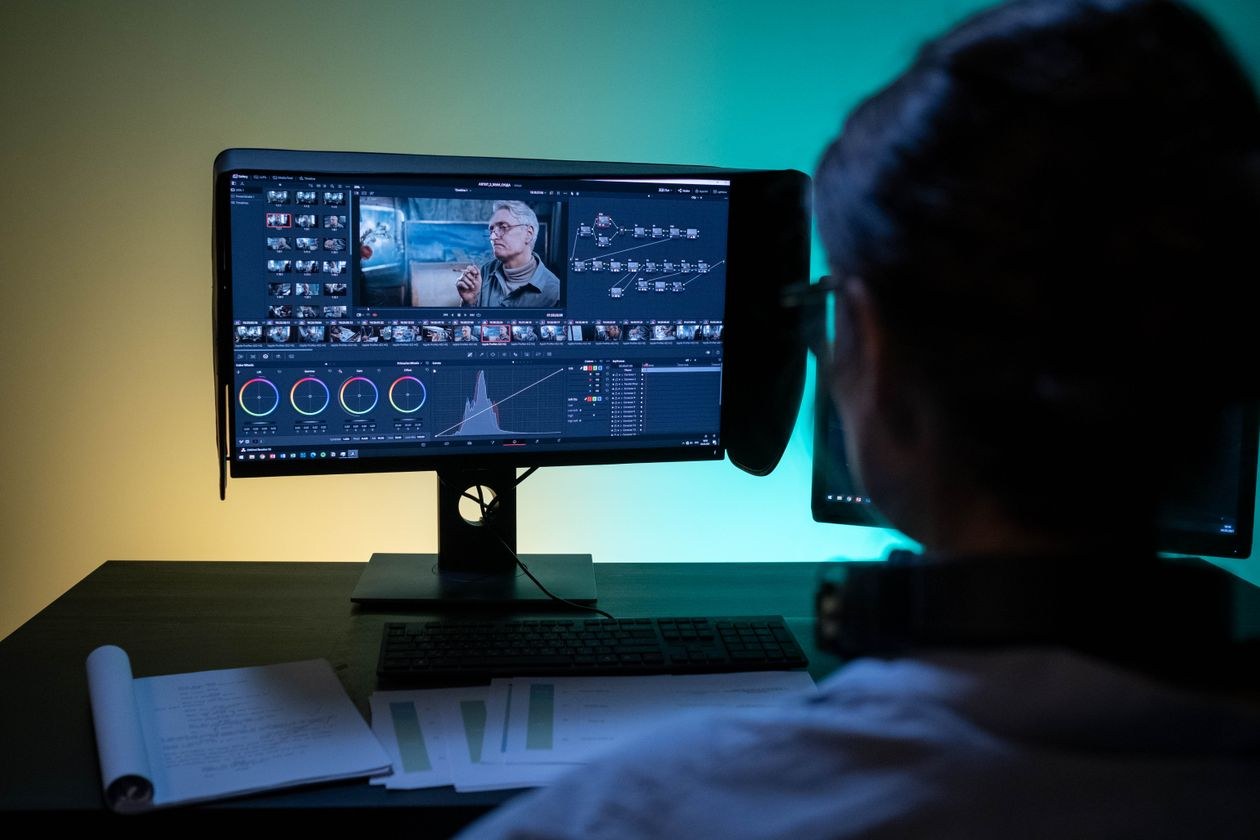
DaVinci Resolve is a professional editor. It is used for film and TV color work, and the free version is not a trial or a cut down demo. There is no watermark, no time limit, and no export cap within its 4K UHD ceiling.
You get a full editing timeline, the well known Color page, Fusion visual effects, and the Fairlight audio workstation. That is a lot for free, and frankly more than most beginners will use in their first few months.
The paid Studio version costs $295 / around £235 as a one-time purchase. It mainly adds GPU acceleration, higher resolutions, some AI tools, and professional delivery formats that most beginners will never touch. If you want the exact line where the free version stops, this Resolve Free vs Studio comparison breaks it down, and it checked its facts against Blackmagic’s own pages.
The honest catch
Resolve has a learning curve. It is organized into separate “pages” for each stage of the work, and your first hour will probably involve a bit of confusion and a tutorial video or two. If you want to learn editing properly, for a YouTube channel, freelance work, or a career skill, that hour is worth it. If you just need one birthday video tonight, pick Clipchamp instead.
2. Microsoft Clipchamp: The Easiest Start on Windows
Clipchamp is Microsoft’s editor. It is built into Windows 11 and it also runs on the web. The free plan lets you trim clips, arrange them, add titles and basic effects, use some stock assets, and export at 1080p with no watermark. For school projects, family videos, workplace clips, and most social content, that is enough.
Premium stock, 4K export, and brand tools sit in the paid tier. Most people meet that tier through a Microsoft 365 subscription. Personal runs about $99.99 / £84.99 a year, and it includes the Office apps and storage, so a lot of households already have it without realising. TechRadar’s Clipchamp review calls its free plan one of the most generous among beginner editors, and we think that is fair.
The honest catch
Clipchamp wants a Microsoft account. On the web it works best in Chrome or Edge, and it can feel sluggish on older laptops. Microsoft recommends decent hardware, ideally 16GB of RAM, for smooth editing. On a modern Windows laptop, though, nothing on this list gets you from raw clips to a finished, clean export faster.
3. CapCut Desktop: Brilliant for Short-Form, With Asterisks
CapCut is the editor behind a large share of TikTok and Reels content. The desktop version is fast and friendly, and it is strong on auto-captions, effects, and trendy templates. If short social video is your thing, you will probably feel at home in it straight away.
It belongs in this guide with a warning label, though. Exports are watermark-free when you build from your own footage and free features. But projects that use certain premium templates, effects, or Pro elements can require payment or carry branding. So check the export screen before you spend hours on a project. Availability and features also shift by region and over time, so US and UK users should confirm the current free terms in the app itself.
4. Canva Video and the Open-Source Options
Canva Video
If you already design in Canva, its video editor is the quickest route to a decent social video. Drag, drop, add music, export. The watermark rule is simple, but it is easy to trip over. Use only elements marked free, because a single premium element can watermark the export or block it until you pay for that element.
Shotcut and Kdenlive
These free, open-source editors have no accounts, no watermarks, and no subscriptions. They also work fully offline, which is attractive if you care about privacy or you are editing on an older machine. Their interfaces are less polished and there are fewer tutorials around, but for straightforward cutting, titles, and export they are entirely capable. And they cost nothing, forever.
How to Choose in Two Minutes
- You want to learn editing as a skill: DaVinci Resolve. Grow into it. You may never need to pay.
- You want a finished video today, easily: Clipchamp on Windows, or CapCut for social shorts.
- You mainly make social posts from templates: Canva Video, and watch out for premium elements.
- You want no accounts and full privacy: Shotcut or Kdenlive.
- Your computer is old or low on RAM: Start with Clipchamp in the browser or Shotcut, edit at 1080p, and avoid 4K until you upgrade.
A quick note on hardware, because this catches people out. Every editor on this page is free, but none of them can change physics. Editing 4K video on a laptop with 8GB of RAM will be slow in all of them. Work at 1080p, close your other apps, and keep your source files on the internal drive while you edit. It makes a real difference.
If you are also thinking about how videos get found once they are published, our guide to getting cited in Google AI Overviews covers the search side. Our AI & Tools coverage also looks at the AI captioning and editing assistants that now sit inside most of these apps.
What we tell every beginner who asks us
We tell people to pick one editor and stick with it for their first few videos. Jumping between apps feels productive, but it usually just means learning the same basics three times. Your second video will be faster than your first, whichever tool you choose, and that speed comes from staying put, not from finding a perfect app.
We also tell them to export a short test clip before they edit anything long. It takes a minute, and it tells you the truth about watermarks, export quality, and file size. Save your project files too, not just the finished video. If you spot a mistake later, and you will, you will be glad you can reopen the project and fix just that one part.
Frequently Asked Questions
Is DaVinci Resolve really free, with no catch?
Yes. The free version has no watermark, no trial period, and no subscription, and it exports up to 4K UHD. Blackmagic makes its money selling cameras and hardware, and the software builds that ecosystem. The Studio upgrade ($295 one-time) is for professionals who need higher resolutions, faster GPU rendering, and specific broadcast features.
Why do some “free” editors put a watermark on exports?
Because the watermark is the business model. The editor is free to use, and removing the branding is what you pay for. That is a legitimate model, but it means the word “free” in an app store listing tells you very little. Always export a ten-second test clip before you edit a full project in any new tool.
Which free editor is best for YouTube?
For most new YouTubers, it is Resolve. It handles long videos, proper audio, good color, and 4K, and the skills you learn in it transfer to paid work. If your videos are simple talking head clips and speed matters more than depth, Clipchamp will get you publishing sooner.
Can I edit on a Chromebook or a phone instead?
Yes, with compromises. Clipchamp and Canva run in a Chrome browser, and CapCut’s mobile apps are capable for short videos. For anything longer than a few minutes, a laptop or desktop, even an older one, is a far less frustrating way to edit.
Final Takeaway
You do not need to pay, and you never need to accept a watermark. Learn Resolve if you want a real skill. Use Clipchamp if you want a finished video fast. And test export before you trust any new “free” editor with a real project.
Browse more honest software comparisons in Software, keep an eye on Tech News for plan changes, because free tiers do change, and contact TechPure if you want a guide to your first Resolve project.
